You can set up Xfinity WiFi in under 20 minutes using the Xfinity app, your XFi Gateway, and an active cable outlet.
I decided to write this guide because I’ve seen a lot of people struggle during the initial Xfinity setup process, especially when the app fails to detect the gateway or the WiFi signal feels weak after installation.
I also noticed many setup videos skip important details like gateway placement and activation troubleshooting. So this guide covers the full process clearly without unnecessary steps.
This guide is for:
- New Xfinity Internet customers
- Users replacing an old router
- People moving into a new apartment or house
- Anyone setting up Xfinity WiFi without a technician
Table of Contents
What Comes in the Xfinity Box?
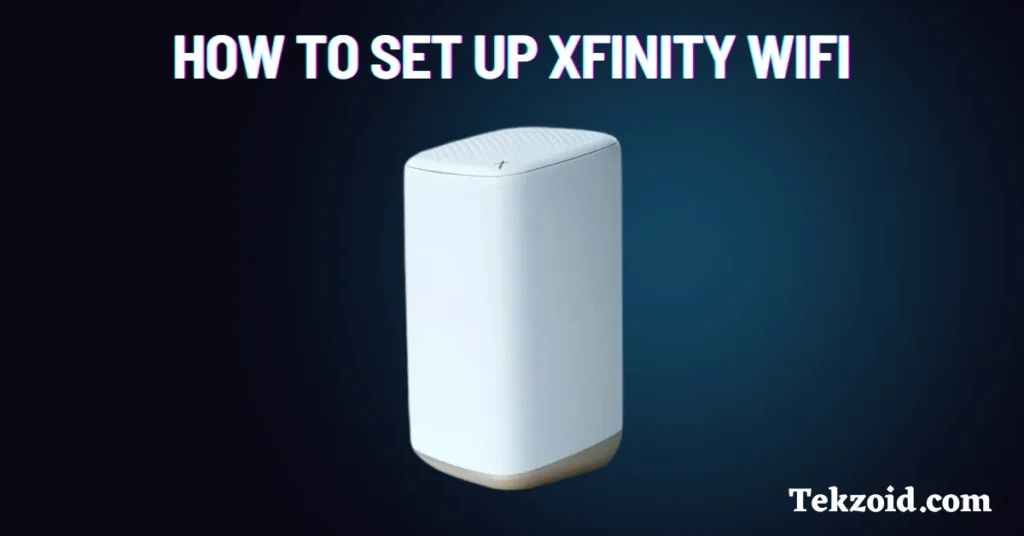
Most Xfinity self-install kits include:
- Xfinity xFi Gateway (modem + router combo)
- Coaxial cable
- Power adapter
- Quick start guide or QR setup card
Before starting, place everything near an active cable outlet.
Gateway placement matters more than most people realize. Poor placement can reduce:
- WiFi speed
- Coverage range
- Device performance
Step 1: Download the Xfinity App
The setup process works through the official Xfinity app.
To install it:
- Search “Xfinity” in the App Store or Google Play
- Or scan the QR code from the setup card
After installing the app:
- Sign in using your Xfinity ID
- Make sure you have Primary, Member, or Manager access on the account
Without proper account permissions, activation may fail.
Step 2: Find the Best Gateway Placement
Before connecting cables, choose a good location for the gateway.
For the best WiFi signal:
- Place the gateway in an open area
- Avoid closets and cabinets
- Keep it a few feet above the floor
- Stay away from thick walls
- Avoid placing it beside TVs or large electronics
From what I’ve seen helping friends with home WiFi setups, placement alone can noticeably improve speed and coverage.
Living rooms and home offices usually work best.
Step 3: Connect the Xfinity Gateway
Now connect the hardware.
Connect the Coax Cable
- Attach the coaxial cable to the wall outlet
- Connect the other end to the gateway
- Tighten the connection by hand until secure
Do not overtighten it with tools.
Plug In the Power Adapter
- Connect the power cable to the gateway
- Plug it into a power outlet
The gateway should turn on automatically.
Most Xfinity gateways take around 5 minutes to fully boot up.
Step 4: Activate Xfinity Internet
Open the Xfinity app and start activation.
Start Activation
- Tap “Get Started” in the app
- Follow the on-screen instructions
- Wait while the app detects your gateway
Activation can take up to 20 minutes, depending on the connection and account status.
During this process, the gateway may restart automatically.
Step 5: Check Gateway Light Status
The gateway lights help confirm whether the setup was completed correctly.
Single-Light Gateways
The device is usually ready when the light becomes:
- Solid white
- Blinking white
Multi-Light Gateways
The top three lights should become solid.
After that:
- Tap “Ready to Go” in the app
- Run “Check Connection”
If activation fails:
- Try another cable outlet
- Restart the gateway
- Check for loose coax connections
Sometimes the outlet itself is inactive, especially in apartments or newly connected homes.
In that case, you may need a technician visit.
Step 6: Set Your WiFi Name and Password
Once activation finishes, the app will ask you to create WiFi details.
You’ll need to choose:
- A WiFi network name (SSID)
- A secure password
After saving the settings:
- Your phone may reconnect automatically
- Or you can manually connect using the new WiFi name and password
Try using a strong password instead of simple names or numbers.
Features You Can Manage in the Xfinity App
The Xfinity app does more than set up.
You can also:
- Pause WiFi access
- Manage connected devices
- Enable Advanced Security
- Restart the gateway remotely
- Troubleshoot internet problems
Honestly, the app setup is much easier now compared to older modem installations that required browser activation pages and manual configuration.
Common Xfinity Setup Problems
Here are some common issues people run into during setup.
Gateway Not Detected
Try:
- Restarting the gateway
- Checking cable connections
- Waiting a few more minutes
Weak WiFi Signal
Usually caused by:
- Bad gateway placement
- Thick walls
- Furniture blocking the signal
No Internet After Activation
Possible reasons:
- Inactive cable outlet
- Service outage
- Account activation issue
If nothing works after troubleshooting, contacting Xfinity support is usually the fastest option.
Video Tutorial:
Final Thoughts
For most people, Xfinity WiFi setup is straightforward if the cable outlet is active and the gateway is placed correctly.
The biggest mistakes I usually see are:
- Poor router placement
- Loose coax cables
- Rushing the activation process
Take a few extra minutes to place the gateway properly. It can make a bigger difference than upgrading to a more expensive internet plan.
FAQs
Do you need a technician to set up Xfinity WiFi?
No. Most users can complete the setup themselves using the Xfinity app and self-install kit.
How long does Xfinity activation take?
In most cases, activation finishes within 20 minutes.
Can you use your own router with Xfinity?
Yes. But you may still need a compatible modem if you do not use the Xfinity Gateway.
