Samsung Secure Folder is a private, encrypted space on Galaxy phones that lets you store apps, photos, videos, and files separately from the rest of your device.
I decided to write this because a lot of people were asking about Samsung Secure Folder after seeing it in their phone settings. I also noticed comments on YouTube from users wondering if it actually protects private files or if it’s just another hidden folder.
So I checked Samsung’s official documentation, tested it on a Galaxy device, and looked at how regular users actually use it.
This guide is for Samsung Galaxy users who want more privacy, separate app accounts, or extra protection for personal files.
Table of Contents
What Is Samsung Secure Folder?
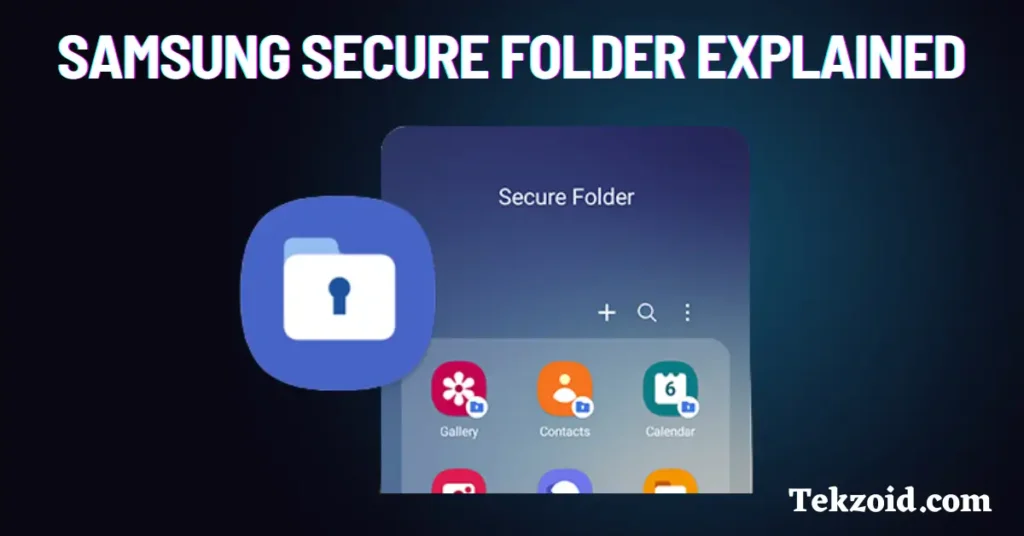
Samsung Secure Folder is a built-in privacy feature available on many Samsung Galaxy phones.
It creates a separate encrypted area inside your device where you can store apps, files, photos, and other content away from your main phone storage.
Samsung built this feature using Samsung Knox, which is the company’s security platform for Galaxy devices.
Key things to know about Secure Folder
- Everything inside is encrypted separately from your normal phone storage
- Access requires a PIN, password, pattern, or biometrics
- Files stay hidden from the rest of the phone
- Apps inside Secure Folder work independently
- You can hide the Secure Folder icon for extra privacy
Even if someone unlocks your phone, they still cannot open Secure Folder without its separate lock.
What Can You Store Inside a Secure Folder?
You can move existing files into Secure Folder or add new content directly inside it.
Files and content you can store
- Photos and videos
- Documents and PDFs
- Notes and files
- Private recordings
- Downloaded content
Apps you can add
- Gallery
- Chrome
- Samsung Notes
- Social media apps
One useful feature is that Secure Folder allows separate copies of apps.
For example, you can run two WhatsApp accounts on the same phone. One outside Secure Folder and one inside it.
That’s useful if you want to separate:
- Work and personal accounts
- Business chats and private chats
- Different social media logins
Why People Use Samsung Secure Folder?
Most people use Secure Folder for privacy and separation.
Common use cases
- Keeping private photos hidden
- Storing sensitive work files
- Running two app accounts
- Protecting banking or financial documents
- Hiding apps from other people using the phone
From my experience testing it, Secure Folder feels more useful than simple “hide file” apps because it’s deeply integrated into Samsung’s system security.
It’s also easier to manage compared to third-party privacy apps that often show ads or request unnecessary permissions.
How to Set Up Samsung Secure Folder
The setup process only takes a few minutes.
Steps to enable Secure Folder
- Open Settings
- Tap “Biometrics and security.”
- Tap “Secure Folder”
- Review permissions and tap Continue
- Sign in with your Samsung account
- Choose a lock method
Once enabled, Secure Folder appears as a separate app on your phone.
You can also hide the Secure Folder icon from the home screen if you want more privacy.
Important Things You Should Know
Before using Secure Folder, there are a few things many users overlook.
If you forget your password
You must remember your Secure Folder password or PIN.
If Samsung account recovery is disabled and you forget your password, you may permanently lose access to the data stored inside.
Uninstalling Secure Folder deletes data
If you uninstall Secure Folder, all files and apps stored inside it are deleted.
That includes:
- Photos
- Videos
- Documents
- App data
- Separate app accounts
Backups depend on your Samsung account
Some recovery and backup features rely on your Samsung account settings.
If you care about the files inside Secure Folder, make sure account recovery and backup settings are properly configured.
Is Samsung Secure Folder Actually Secure?
For regular users, yes, it’s one of the strongest built-in privacy features available on Android phones.
Because it uses Samsung Knox, Secure Folder is protected at both the software and hardware levels on supported Galaxy devices.
That said, no phone security feature is perfect.
If someone already has full access to your Samsung account, recovery options, or device settings, your privacy can still be at risk.
But for everyday use, Secure Folder adds a strong extra layer of protection beyond your normal lock screen.
Video Guide:
Who Should Use Samsung Secure Folder?
Secure Folder is useful if you:
- Share your phone with family or friends
- Store sensitive documents
- Want private app accounts
- Need work and personal separation
- Keep personal photos or videos on your phone
If you barely store anything private on your device, you may never need it.
But for many Galaxy users, it’s one of the most useful hidden features Samsung offers.
FAQs
Does Samsung Secure Folder hide apps completely?
Apps inside Secure Folder stay separate from your main phone. You can also hide the Secure Folder icon from the home screen for extra privacy.
Can Secure Folder run two WhatsApp accounts?
Yes. You can install a separate copy of WhatsApp inside Secure Folder and use a second account.
What happens if I uninstall Secure Folder?
Uninstalling Secure Folder deletes all data stored inside it unless you back it up first.
