Want to use your DIRECTV remote to control your TV’s power, volume, and mute functions? The setup process depends on which DIRECTV remote you have.
DIRECTV has several types of remotes, including Genie, Universal, and Gemini remotes, and each uses a slightly different programming method.
Before you start, turn on your TV and make sure your DIRECTV receiver or device is powered on.
Table of Contents
How to Program a DIRECTV Genie Remote
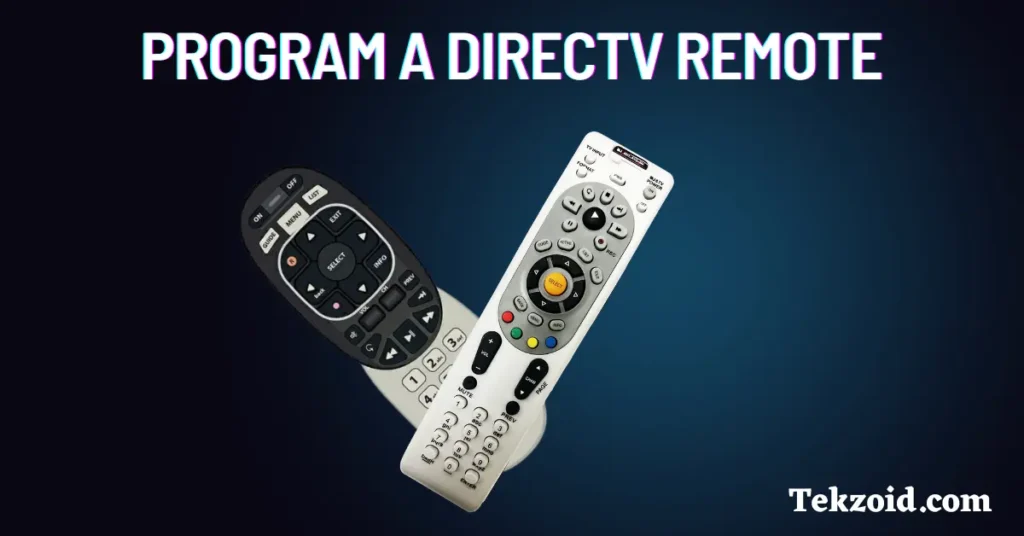
If you have a Genie remote, you can usually program it through the DIRECTV on-screen menu.
Follow these steps:
- Press the MENU button on your DIRECTV remote.
- Select Settings.
- Choose Remote Control.
- Select Program Remote.
- Choose TV.
- Follow the instructions displayed on your TV screen.
- Test the Power and Volume buttons when setup is complete.
Genie Remote IR/RF Setup
Some Genie setups may require you to configure the remote’s connection mode first.
If prompted:
- Open the remote settings.
- Select IR/RF Setup.
- Choose RF.
- Continue with the programming instructions on the screen.
Once the setup is finished, test the remote to make sure it can turn the TV on and off and adjust the volume.
How to Program a DIRECTV Universal Remote
Older DIRECTV Universal Remotes use a different programming method.
Here’s how to program one:
- Turn on your TV.
- Move the mode switch on the remote to TV.
- Press and hold MUTE + SELECT at the same time.
- Wait until the green light on the remote blinks twice.
- Enter the programming code for your TV brand.
- Press POWER.
- Check whether the TV responds.
If the TV doesn’t respond, the code may not be the correct one for your television.
Try another code listed for your TV brand and repeat the process.
How to Program a DIRECTV Gemini Remote
The setup process is different if you’re using a DIRECTV Gemini remote.
To get started:
- Turn on your TV.
- Turn on your DIRECTV device.
- Point the remote toward the device.
- Press and hold FAST FORWARD + REWIND together.
- Hold the buttons for about 2 to 3 seconds.
- Follow the instructions displayed on your TV.
The on-screen setup will guide you through the remaining steps.
After programming, test the remote’s Power and Volume buttons.
What If Your DIRECTV Remote Doesn’t Work?
If your remote doesn’t control the TV after programming, try these troubleshooting steps.
Replace the Batteries
Weak batteries can cause the remote to stop responding or behave inconsistently.
Replace the batteries with a fresh set and try programming the remote again.
Check That the TV Is On
Make sure your TV is powered on before starting the setup process.
Repeat the Programming Process
If you entered the wrong code or missed a step, start the programming process again from the beginning.
Check the TV Brand
When programming a Universal Remote, make sure you’re using a code that matches your TV manufacturer.
If one code doesn’t work, try another code listed for the same brand.
Try the Setup Again
If the remote still doesn’t respond, repeat the setup instructions for your specific remote type.
The programming method for a Genie remote is different from a Universal or Gemini remote, so make sure you’re following the correct instructions.
Video Guide:
Which DIRECTV Remote Do You Have?
The easiest way to choose the right setup method is to identify your remote first.
- Genie Remote: Use the DIRECTV on-screen settings and Program Remote option.
- Universal Remote: Use the MUTE + SELECT programming method and a TV brand code.
- Gemini Remote: Hold FAST FORWARD + REWIND and follow the on-screen instructions.
Using the correct method is important because the button combinations and setup menus aren’t the same across DIRECTV remotes.
Frequently Asked Questions
How do I program my DIRECTV remote to my TV?
The method depends on your remote. Genie remotes can usually be programmed through Settings > Remote Control > Program Remote, while older Universal Remotes use MUTE + SELECT and a TV code.
Why won’t my DIRECTV remote control my TV?
The most common things to check are the batteries, TV brand code, remote type, and whether the programming process was completed correctly.
Can a DIRECTV remote control TV volume?
Yes. After the remote is correctly programmed, compatible DIRECTV remotes can control functions such as TV power and volume.
What if my DIRECTV remote doesn’t have a mode switch?
Don’t use the Universal Remote method if your remote doesn’t have the corresponding controls. Identify whether you have a Genie or Gemini remote and follow its specific setup process instead.
