If you have Spectrum Internet but your WiFi signal is weak in certain rooms, a Spectrum WiFi Extender can help improve coverage.
An extender works with your Spectrum router to bring WiFi to areas farther away from the router. This can be useful in larger homes, upstairs bedrooms, garages, or rooms where walls and distance affect the signal.
In this guide, I’ll explain how a Spectrum WiFi Extender works, how to set it up, where to place it, and what to try if it isn’t working properly.
Table of Contents
What Is a Spectrum WiFi Extender?
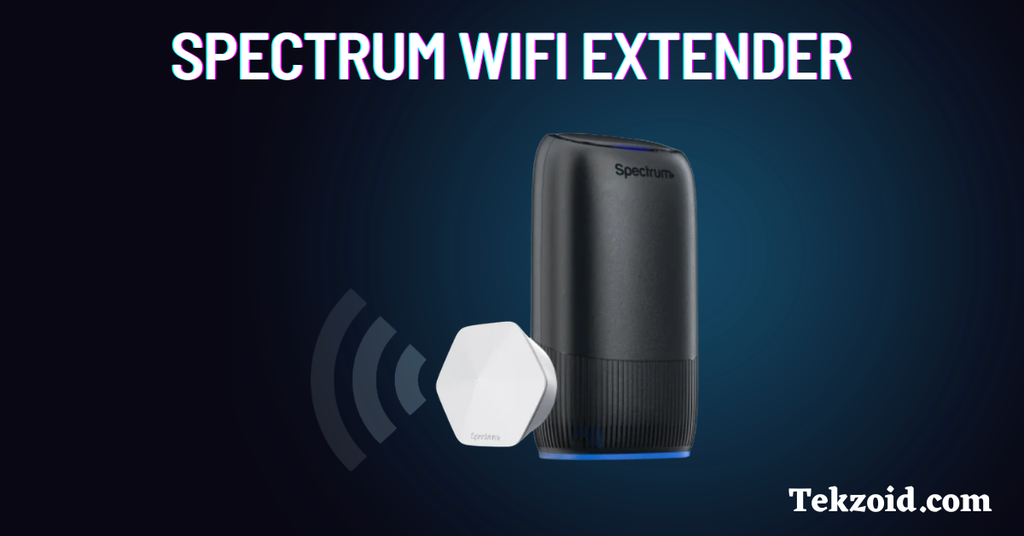
A Spectrum WiFi Extender is a device that works with your Spectrum router to extend wireless coverage.
Instead of replacing your main router, the extender receives the WiFi signal from the router and rebroadcasts it to a larger area.
It can be useful if you have weak coverage in:
- Upstairs bedrooms
- Large homes
- Garages
- Rooms far from the router
- Areas separated by thick walls
For example, if your Spectrum router provides a strong connection in the living room but the WiFi becomes weak upstairs, an extender can help bring the wireless signal closer to that area.
How Does a Spectrum WiFi Extender Work?
The basic setup is simple.
Your Spectrum router sends the WiFi signal to the extender, and the extender extends that coverage to your devices.
The extender communicates with the main router and then provides WiFi coverage in the area where it’s installed.
However, placement is important.
You shouldn’t place the extender directly inside a dead zone where the router’s signal is already extremely weak. The extender needs a reasonably good connection to the router so it can extend that connection effectively.
A good starting point is to place the extender somewhere between the router and the area with weak coverage.
You can then test the connection and move the extender if needed.
How to Set Up a Spectrum WiFi Extender
Setting up a Spectrum extender is generally straightforward, although the exact steps can vary depending on the model.
1. Plug In the Extender
Start by plugging the extender into a power outlet near your Spectrum router.
Don’t move it to the final location immediately. Setting it up close to the router can make the initial connection easier.
2. Wait for It to Power On
Give the extender some time to start up.
Look at the indicator lights on the device and follow the setup instructions provided for your specific model.
3. Follow the Setup Instructions
Depending on your extender, you may be able to complete the setup using the device’s instructions, WPS, or the My Spectrum app if the model supports app-based setup.
Follow the prompts for connecting the extender to your Spectrum network.
4. Move the Extender
Once the extender is connected, move it toward the area where you need better coverage.
Don’t put it directly in the dead zone.
Instead, choose a location where it can still receive a good signal from the main router.
5. Test Your WiFi
After moving the extender, connect your phone, laptop, or other device to WiFi and test the connection.
If the signal is still weak, try moving the extender closer to the router.
Small changes in placement can make a noticeable difference.
Where Should You Place a Spectrum WiFi Extender?
Placement is one of the most important parts of getting good performance from a WiFi extender.
A few things to keep in mind:
- Don’t place it inside a dead zone.
- Keep it within a reasonable range of the router.
- Avoid placing it behind large appliances or furniture.
- Keep it away from sources of wireless interference.
- Try to position it between the router and the area with weak coverage.
For a two-story home, for example, placing the extender near the stairs or in an open area between floors may work better than putting it inside the room where the signal is weakest.
You may need to test a few locations to find the best one.
Spectrum WiFi 7 Extender
Spectrum also offers a WiFi 7 Extender designed for newer Spectrum networking equipment.
The WiFi 7 Extender includes multiple Ethernet ports, including 10Gbps, 2.5Gbps, and 1Gbps connections.
This can be useful if you want to connect wired devices directly to the extender.
If you’re using a newer Spectrum WiFi 7 router, the setup process can differ from older Spectrum equipment. This is especially important if you’re trying to use WPS to connect the devices.
Always follow the instructions for your specific Spectrum router and extender model.
Spectrum WiFi Extender Troubleshooting
If your Spectrum WiFi Extender isn’t working properly, try these steps.
Restart the Router and Extender
Turn off or restart your Spectrum router and extender.
Give both devices time to restart, then check the WiFi connection again.
Move the Extender Closer
If the extender has a weak connection to the router, move it closer.
Remember, the extender needs a good connection to the router before it can provide better coverage farther away.
Check the Network Connection
Make sure your Spectrum Internet service is working properly.
If the main router isn’t connected to the internet, the extender won’t be able to provide a working internet connection.
Use the My Spectrum App
If your specific equipment supports the My Spectrum app, use it to check available network information and troubleshooting options.
The exact features available can depend on your Spectrum equipment.
Does a Spectrum WiFi Extender Increase Internet Speed?
A WiFi extender primarily helps with coverage, not the speed of your Spectrum Internet plan.
If your internet connection is fast near the router but weak in another room, an extender can help improve the wireless connection in that area.
However, an extender won’t increase the internet speed you’re getting from your Spectrum plan.
Actual WiFi performance can also depend on the router, extender, distance, walls, interference, connected devices, and the WiFi standard being used.
Video Tutorial:
Is a Spectrum WiFi Extender Worth It?
A Spectrum WiFi Extender can be useful if your main problem is weak WiFi coverage in specific areas of your home.
It can be a practical option if you don’t want to replace your existing router and only need to improve coverage in one or two areas.
The most important thing is placement. Putting the extender too far from the router can limit its performance.
If you have a large home with multiple dead zones, you may also want to consider a mesh WiFi system instead of relying on a single extender.
FAQs
How do I set up a Spectrum WiFi Extender?
Plug the extender in near your Spectrum router, power it on, and follow the setup instructions for your model. If supported, you may also use the My Spectrum app. After connecting it, move the extender to an appropriate location between the router and the weak-signal area.
Where should I put my Spectrum WiFi Extender?
Place the extender somewhere that still receives a good WiFi signal from your Spectrum router. Avoid putting it directly inside a dead zone. A location between the router and the area with poor coverage is usually a better starting point.
Why is my Spectrum WiFi Extender not working?
Restart both the router and extender, then try moving the extender closer to the router. Also check that your main Spectrum Internet connection is working. If your model supports the My Spectrum app, check the available troubleshooting options there.
Final Thoughts
A Spectrum WiFi Extender can help solve WiFi coverage problems without requiring you to replace your main router.
The setup is generally simple, but placement makes a big difference. Start near the router, complete the setup, then move the extender toward the area where you need better coverage while keeping a good connection back to the router.
If you’re using newer Spectrum WiFi 7 equipment, check the instructions for your specific model, especially when setting up WPS or using the Ethernet ports.
