If you have weak WiFi or dead zones in certain parts of your home, an Xfinity WiFi Extender can help extend your existing wireless coverage.
Xfinity extenders work with your Xfinity Gateway to provide WiFi coverage farther from the main router. You can use the Xfinity app to activate and set up the extender.
In this guide, I’ll explain what you need before starting, how to set up an Xfinity WiFi Extender, where to place it, and what to do if it won’t connect.
Table of Contents
What You Need Before Setting Up
Before you start the installation, make sure your Xfinity equipment and phone are ready.
You’ll need:
- An activated Xfinity Gateway
- WiFi turned on and broadcasting
- Your Gateway not set to Bridge Mode
- The Xfinity app installed on your phone
- One WiFi network name and password
Your phone will also need to be near the extender during activation.
Xfinity recommends placing the extender in a room between your Gateway and the area with weak coverage.
Don’t hide the extender behind furniture or large objects. Keep it visible and away from metal objects that could interfere with the wireless signal.
It’s also better to avoid using an outlet controlled by a wall switch. If that switch is turned off, the extender will lose power.
Where Should You Place an Xfinity WiFi Extender?
Placement is one of the most important parts of setting up an extender.
Don’t put the extender directly inside the area where you have no WiFi signal. The extender needs to receive a good connection from the Gateway before it can extend that connection farther.
For the first Xfinity WiFi Extender, Xfinity recommends placing it approximately 20 to 30 feet from the Gateway, with at least one room separating the two.
A good setup looks something like this:
Xfinity Gateway → Extender → Weak WiFi Area
For example, if your Gateway is in the living room and the bedroom upstairs has poor coverage, you could place the extender in a suitable room or location between the two areas.
You may need to test different locations to get the best result.
How to Set Up an Xfinity WiFi Extender
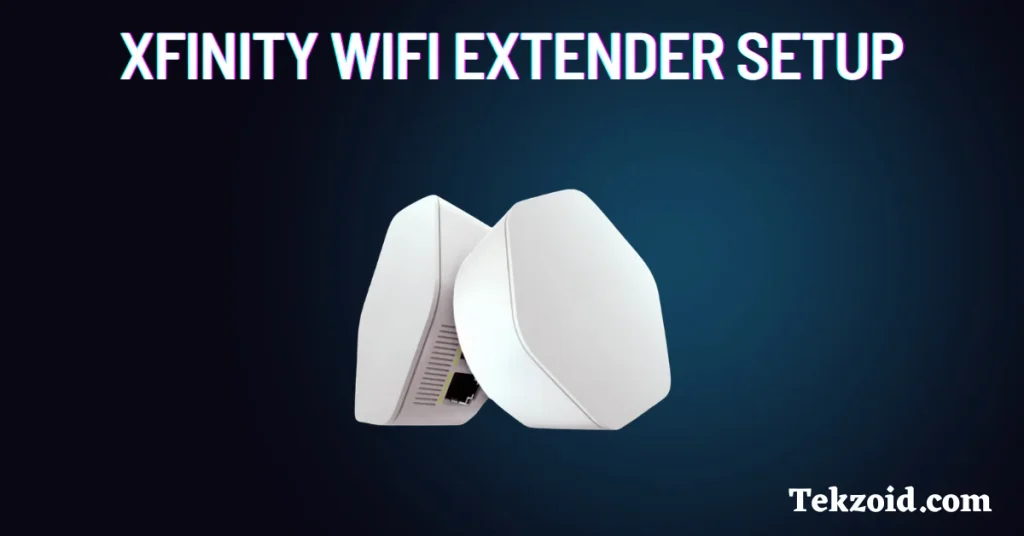
Once you’ve selected a suitable location, you can begin the activation process.
1. Plug In the Extender
Plug your Xfinity WiFi Extender into an indoor power outlet at the recommended location.
Make sure the outlet isn’t controlled by a wall switch.
Allow the extender time to power on before starting activation.
2. Turn On Bluetooth
Turn on Bluetooth on your phone.
Xfinity recommends Bluetooth during the activation process because the Xfinity app can use it to communicate with the extender.
Also make sure your phone is close to the extender.
3. Open the Xfinity App
Open the Xfinity app and sign in to your Xfinity account.
Once you’re signed in, you can start the device activation process.
4. Go to Services
At the bottom of the app, tap Services.
Scroll down until you find Activate More Devices.
5. Select WiFi Extenders
Tap WiFi Extenders.
The app should show the available extender you’re installing.
Select the appropriate device.
6. Tap Get Started
Tap Get Started and follow the instructions shown in the Xfinity app.
The app will guide you through the remaining activation steps.
This can include connecting the extender, confirming its location, and setting up the device.
Follow the placement recommendations shown in the app before moving the extender to its final location.
What If the Xfinity WiFi Extender Won’t Connect?
If your extender doesn’t connect during setup, there are a few things you can try.
Restart Your Xfinity Gateway
Restart the Gateway and wait for your internet connection to return.
Then try activating the extender again through the Xfinity app.
Move the Extender Closer
If the extender is too far from the Gateway, move it closer and try the activation process again.
A weak connection between the Gateway and extender can prevent successful setup.
Keep Your Phone Nearby
During activation, keep your phone close to the extender.
This is particularly important when Bluetooth is being used by the Xfinity app during setup.
Remove Obstructions
Make sure the extender isn’t hidden behind furniture, large objects, or metal.
These can interfere with the wireless connection.
Check the Power Outlet
Make sure you’re using an outlet that provides continuous power.
Avoid outlets controlled by wall switches because accidentally turning off the switch will also turn off the extender.
Does an Xfinity WiFi Extender Increase Internet Speed?
No. An Xfinity WiFi Extender is primarily designed to improve WiFi coverage, not increase the maximum speed of your Xfinity Internet plan.
For example, if your internet connection works well near the Gateway but becomes weak in another room, an extender can help provide better coverage in that room.
However, it doesn’t increase the speed you’re subscribed to.
Your actual WiFi performance can also depend on the Gateway, extender placement, walls, interference, connected devices, and other factors.
Xfinity WiFi Extender Setup: Quick Checklist
Before starting, check these items:
- Xfinity Gateway is activated
- WiFi is turned on
- Gateway isn’t in Bridge Mode
- Xfinity app is installed
- Bluetooth is enabled
- Phone is near the extender
- Extender is plugged into a suitable indoor outlet
- Extender is approximately 20–30 feet from the Gateway
- There is at least one room between the Gateway and extender
- The extender isn’t blocked by furniture or metal objects
If everything is ready, the Xfinity app should guide you through the activation process.
Video Guide:
FAQs
How do I set up an Xfinity WiFi Extender?
Plug the extender into an appropriate outlet, turn on Bluetooth on your phone, open the Xfinity app, go to Services > Activate More Devices > WiFi Extenders, select your extender, and tap Get Started. Then follow the on-screen instructions.
How far should an Xfinity WiFi Extender be from the Gateway?
For the first extender, Xfinity recommends approximately 20 to 30 feet from the Gateway, with at least one room separating the two. The ideal location can vary depending on your home’s layout and construction.
Does an Xfinity WiFi Extender make WiFi faster?
The main purpose of an Xfinity WiFi Extender is to improve coverage, not increase your internet plan’s maximum speed. It can help provide a better connection in areas where the Gateway’s WiFi signal is weak.
Final Thoughts
Setting up an Xfinity WiFi Extender is fairly straightforward when you use the Xfinity app.
Start by making sure your Gateway is activated, WiFi is enabled, and your Gateway isn’t in Bridge Mode. Then place the extender in a location where it can still receive a good signal from the Gateway.
For the first extender, Xfinity recommends roughly 20 to 30 feet from the Gateway, with at least one room separating the devices.
If the extender won’t connect, move it closer, restart your Gateway, keep your phone nearby, and make sure the extender isn’t blocked or connected to a switched outlet.
The key thing to remember is that an extender improves coverage, not the maximum speed of your Xfinity Internet plan.
