Setting up a Verizon Internet Gateway usually takes less than 15 minutes if your Verizon service is already active and the gateway is placed correctly.
I decided to write this because I noticed many people getting confused during Verizon Home Internet setup, especially when the gateway fails to connect or shows blinking lights for too long.
A few readers also asked whether the Verizon 5G Home Internet setup is different from Verizon Fios.
So I checked Verizon’s official setup instructions, tested the process on a Verizon gateway, and reviewed common setup problems users report online.
This guide is for people setting up Verizon Home Internet for the first time.
Table of Contents
What Comes in the Verizon Internet Gateway Box?
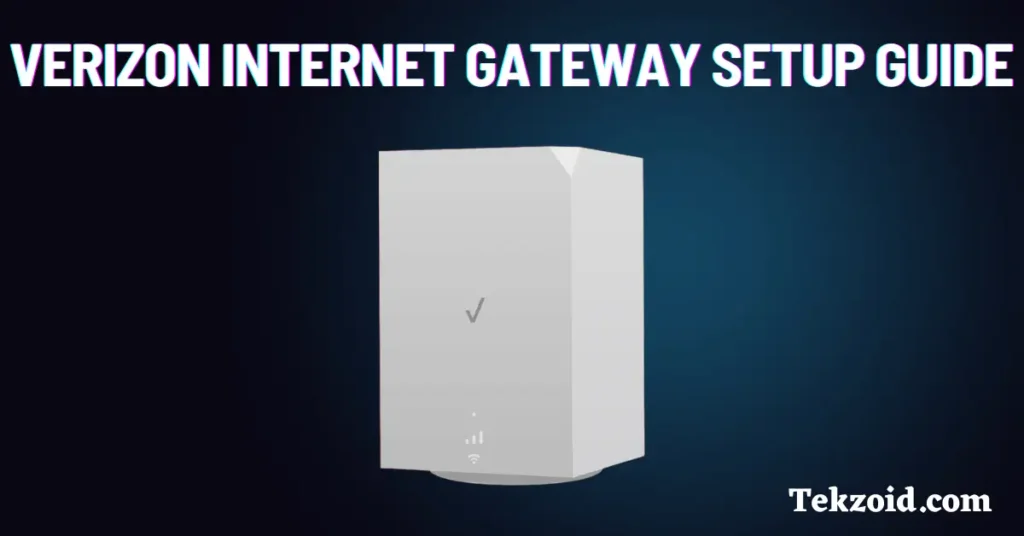
Most Verizon Internet Gateway kits include:
- Verizon Internet Gateway
- Power adapter
- Ethernet cable
- Quick-start guide
Before turning it on, place the gateway near a window or open area if possible.
This helps improve signal quality for Verizon 5G or LTE Home Internet setups.
Step 1: Check Your Verizon Service Activation
Before setting up the gateway, make sure:
- Your Verizon Home Internet service is active
- Your Verizon account setup is complete
- You are using the gateway at the approved service address
This part matters more than many people realize.
If the account or service activation is incomplete, the gateway may never connect properly.
Step 2: Power On the Verizon Gateway
Now it’s time to start the gateway.
Follow these steps
- Connect the power adapter to the gateway
- Plug it into a wall outlet
- Press the power button if your model has one
- Wait several minutes for startup
During startup, the light on the gateway may blink.
What the lights usually mean
- Blinking light = Gateway is starting or connecting
- Solid white light = Connection is active and working
- Red or yellow light = Weak signal or setup issue
The exact colors can vary slightly depending on your Verizon gateway model.
Step 3: Choose the Correct Internet Connection Type
The setup process depends on which Verizon internet service you have.
Verizon 5G or LTE Home Internet Setup
For Verizon wireless home internet:
- No wall internet cable is required
- The gateway connects wirelessly to Verizon’s network
- You usually only need power and proper placement
Once powered on, the gateway automatically searches for Verizon’s signal.
Placement matters a lot
For better speeds:
- Place the gateway near a window
- Keep it elevated if possible
- Avoid enclosed cabinets or corners
Verizon Fios or Wired Internet Setup
For Verizon Fios or wired internet service:
- Connect the Ethernet or coax cable from the wall
- Plug it into the WAN or Internet port on the gateway
Once connected, the gateway should establish the wired connection automatically.
Step 4: Connect Your Devices to Wi-Fi
After the gateway finishes connecting, you can join the Wi-Fi network.
Here’s how
- Check the sticker or label on the gateway
- Find the default Wi-Fi network name
- Find the default Wi-Fi password
- Open Wi-Fi settings on your phone, laptop, or tablet
- Select the Verizon network
- Enter the password
You should now be connected to the internet.
Step 5: Change Your Wi-Fi Name and Password
This step is optional, but recommended.
Changing the default Wi-Fi name and password makes your network easier to recognize and more secure.
Steps to change Wi-Fi settings
- Open a browser on a connected device
- Go to 192.168.1.1
- Log in using the admin details printed on the gateway label
- Open Wi-Fi settings
- Change the network name and password
- Save the changes
Some devices reconnect automatically after the update.
Others may require reconnecting manually.
Step 6: Use the My Verizon App
The My Verizon app can make setup and troubleshooting easier.
What you can do in the app
- Complete activation steps
- Restart the gateway remotely
- Check connected devices
- Run speed tests
- Troubleshoot internet issues
For many users, the app is easier than logging into the gateway settings manually.
Placement Tips for Better Wi-Fi Performance
Gateway placement affects internet speeds more than most people expect.
Best placement tips
- Keep the gateway in an open area
- Place it near a window if possible
- Avoid thick walls and metal surfaces
- Keep it away from microwaves and large appliances
- Move it slightly if speeds seem weak
Even moving the gateway a few feet can improve signal quality.
A solid white light usually means the best connection
If you keep seeing weak signal lights, try repositioning the gateway before contacting support.
Common Verizon Gateway Setup Problems
Gateway stuck blinking
This usually means:
- Weak signal
- Service activation issue
- Network connection delay
Restarting the gateway often helps.
No internet after setup
Try these fixes:
- Restart the gateway
- Reconnect Wi-Fi devices
- Check account activation
- Move the gateway closer to a window
Slow speeds
Slow speeds are commonly caused by:
- Poor gateway placement
- Congested network areas
- Thick walls block the signal
Video Tutorial:
Is Verizon Home Internet Easy to Set Up?
For most people, yes.
Verizon 5G Home Internet is much easier to install compared to traditional cable internet because there’s usually no technician visit required.
Fios setup may take a little longer if wired connections are involved, but the process is still straightforward for most users.
FAQs
How long does the Verizon Internet Gateway setup take?
Most setups take around 10 to 20 minutes if the service is already activated.
What does the white light mean on a Verizon Gateway?
A solid white light usually means the gateway is connected and working properly.
Can I move my Verizon gateway anywhere in the house?
Yes, but placement affects performance. Open spaces and window areas usually provide the best signal for 5G Home Internet.
