You can set up Verizon 5G Home Internet in under 15 minutes by plugging in the gateway, activating it through the app, and placing it near a strong signal area.
I wrote this after getting repeated setup questions on my videos. A lot of people think installation is complicated, but it’s actually simple if you follow the right steps. I checked the official setup flow from Verizon and combined it with real user tips.
If you’ve just received your device or are planning to order one, this will save you time. Many people also compare it with T-Mobile home internet.
Table of Contents
Who this is for
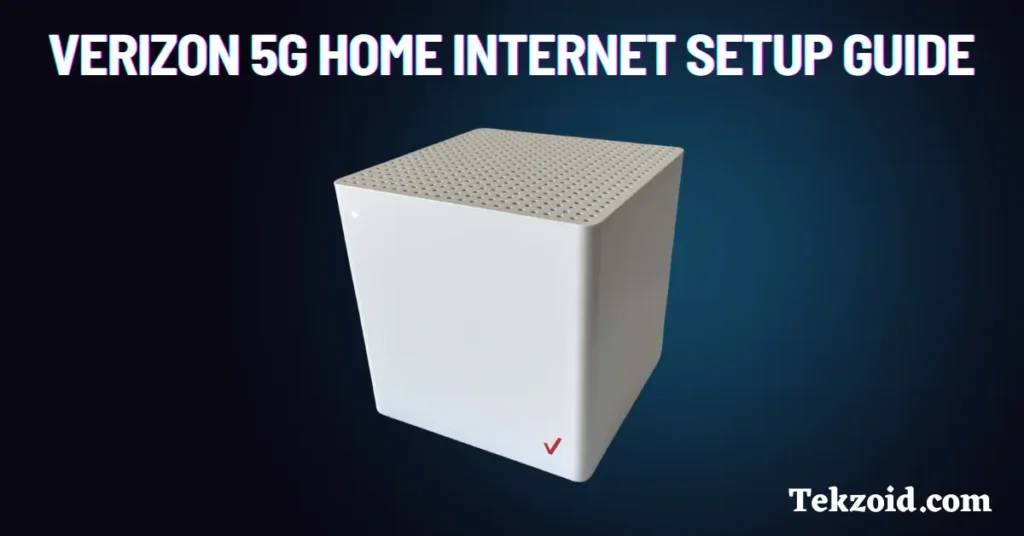
This is for you if:
- You just got Verizon 5G Home Internet
- You want to install it yourself
- You want the best speeds from day one
If you’re expecting a technician visit, that’s not needed here.
What comes in the box
When you open the package, you’ll usually find:
- Verizon 5G Home Gateway
- Power adapter
- Quick start guide
- Ethernet cable (in some kits)
Before starting, place everything near a window or outer wall. Signal strength matters a lot here.
Step 1: Plug in the gateway
Start with the basics:
- Connect the power cable to the gateway
- Plug it into a wall outlet
- Wait for the indicator light
You’re looking for a solid white light.
That means the device is connected and ready.
If the light keeps blinking or shows a different color, it usually means a weak signal or setup is not complete yet.
Step 2: Activate using the app
Download the My Verizon app from the app store.
Then:
- Sign in with your Verizon account
- Follow the setup instructions
- Scan the QR code if asked
- Confirm your order details
The app guides you through activation. Just follow the prompts.
Step 3: Find the best placement
This is where most people mess up.
Placement directly affects your speed.
Use the built-in signal tool in the app and try these:
- Place the gateway near a window
- Keep it facing outside
- Try upstairs if possible
- Avoid thick walls and closed cabinets
Small changes in position can improve speed a lot.
Step 4: Set up your WiFi
Once activated, customize your network:
- Rename your WiFi network
- Set a strong password
- Save the settings
Now connect your devices:
- Phone
- Laptop
- Smart TV
- Other home devices
Step 5: Test your speed
Run a quick speed test using the app.
Check:
- Download speed
- Upload speed
If speeds are low:
- Move the gateway slightly
- Re-run the test
- Try a different window
This step helps you lock in the best spot.
Manage your network
Using the app, you can:
- Monitor signal strength
- See connected devices
- Change settings
- Fix basic issues
This replaces most manual troubleshooting.
Common mistakes to avoid
- Placing the gateway in the center of the house
- Keeping it behind walls or furniture
- Ignoring signal strength during setup
- Not testing different positions
Most speed issues come from poor placement, not the service itself.
Real setup experience
From what I’ve seen, setup is easy for most users.
The biggest difference comes from location:
- Good placement gives strong speeds
- Bad placement leads to dropouts
Take a few extra minutes to test positions. It makes a big difference.
Video Tutorial:
My take
Verizon 5G Home Internet is simple to install. No cables, no technician, no waiting.
But it’s not plug-and-forget.
If you take placement seriously, you’ll get much better performance.
FAQs
Do I need a technician to install Verizon 5G Home Internet?
No, it’s a self-install setup and takes around 10 to 15 minutes.
Where should I place the gateway?
Near a window facing outside for the best signal and speeds.
Why are my speeds slow after setup?
Usually due to poor placement. Try moving the gateway and test again.
